How to Connect Your PrestaShop Store to Google Shopping (Step-by-Step Guide)
If you run a PrestaShop store and want your products to appear on Google Shopping, you need a product feed — a structured XML file that sends your product data to Google Merchant Center.
This guide covers exactly how to do it, from setting up Google Merchant Center to generating and submitting your XML feed.
What Is a Google Shopping Feed?
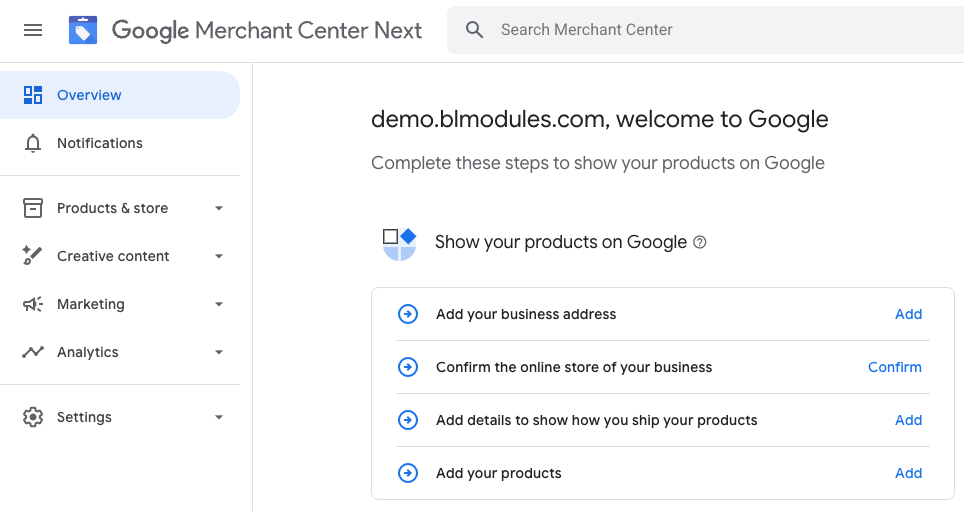
A Google Shopping feed is a file (usually XML or CSV) that contains your product information: titles, prices, descriptions, images, availability, and identifiers like GTIN or MPN. Google Merchant Center reads this file and uses it to display your products in Shopping results.
Without a properly formatted feed, your products simply won’t appear on Google Shopping.
Step 1: Create a Google Merchant Center Account
Go to merchants.google.com and sign up with your Google account. During setup you will need to:
– Verify and claim your website URL
– Set your business country and currency
– Configure shipping settings
– Add a return policy
Make sure your store URL matches exactly — including whether you use www or not.
Step 2: Generate an XML Feed in PrestaShop
PrestaShop does not have a built-in Google Shopping feed generator. You need a module to create and maintain the feed automatically.
With XML Feeds Pro for PrestaShop, you can:
– Generate a Google Shopping-compatible XML feed in minutes
– Use a ready-made template pre-configured for Google’s requirements
– Map your product attributes (title, description, GTIN, brand, etc.) to Google’s fields
– Filter which products to include (by category, price, availability, or any attribute)
– Schedule automatic feed updates with CRON so Google always has fresh data
Once installed, go to the module settings, select the Google Shopping template, set your feed URL, and you are ready for the next step.
Step 3: Submit the Feed to Google Merchant Center
In Google Merchant Center:
1. Go to Products → Feeds
2. Click the + button to add a new feed
3. Select your country and language
4. Choose Scheduled fetch as the input method
5. Paste the feed URL generated by your PrestaShop module
6. Set the fetch frequency (daily is recommended)
Google will crawl your feed URL and import the product data. Initial processing can take up to 24–48 hours.
Step 4: Fix Feed Errors
After Google processes your feed, go to Products → Diagnostics to see any errors or warnings. Common issues include:
– Missing GTIN or MPN — add these to your product catalog
– Image too small — Google requires at least 100x100px (800x800px recommended)
– Price mismatch — the price in the feed must match the price on the product page
– Missing shipping information — configure shipping in Merchant Center settings
A good feed module will show you which products have issues so you can fix them before submitting.
Step 5: Connect to Google Ads (Optional but Recommended)
Once your feed is approved, you can link Google Merchant Center to Google Ads and run Shopping campaigns. This lets your products appear at the top of search results with images and prices — directly in front of buyers.
Why XML Format Is Better Than CSV for PrestaShop
XML feeds are more flexible than CSV. They support nested attributes, custom labels, and are easier to validate automatically. Google’s own documentation recommends XML for complex product catalogs.
XML Feeds Pro generates a fully compliant XML feed that passes Google’s validation without manual editing.
Summary
To connect PrestaShop to Google Shopping you need to:
1. Set up a Google Merchant Center account
2. Generate an XML product feed using a PrestaShop module
3. Submit the feed URL to Merchant Center
4. Fix any errors in the diagnostics tab
5. Link to Google Ads to run Shopping campaigns
The fastest way to get started is with a ready-made PrestaShop XML feed module that includes a Google Shopping template and automatic updates.
XML Feeds Pro for PrestaShop supports Facebook Catalog, Google Shopping, idealo, and 100+ channels. Used by 8,000+ store owners. View the module →
 XML Feeds Pro
  OrderPad B2B Quick Order
  Product importer Pro
  CSV feeds Pro
  Google Indexing API
  Dynamic pricing
  Hot Deals Pro